One-Click AI Background Removal — A Practical Guide for Everyday Creators
If you have ever tried to isolate a subject in Photoshop, you already know the problem. The pen tool gives you total control at the cost of your afternoon. The magic wand is fast but falls apart the moment hair, glass, or lace enters the frame. Refine Edge helps — until it does not. For most creators most of the time, the trade-off between speed and quality is painful.
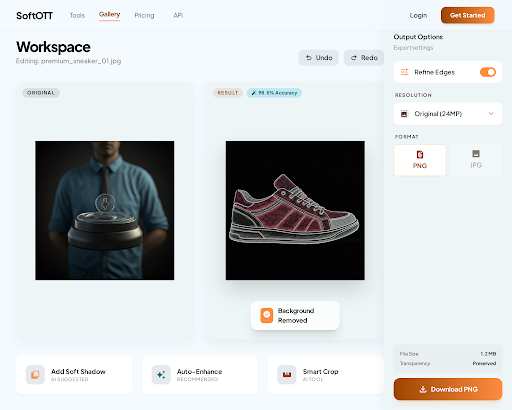
AI changes that trade-off. A modern neural matting model looks at your photo once, reads every pixel, and produces a clean transparent PNG in under two seconds. No tracing, no feathering, no decade of Photoshop muscle memory required. This guide explains how that is possible, what "clean" actually means at the pixel level, and how to use SoftOTT's background removal tool to get results that look like a retoucher spent an hour on them.
What Background Removal Is Actually Doing
Under the hood, background removal is a classification task called semantic segmentation. For every pixel in your image, the model answers one question: is this part of the subject, or part of the background? The output is a grayscale mask where white means "keep," black means "remove," and the values in between — the most important ones — define soft, semi-transparent edges.
When you save the cutout as a PNG, the mask becomes the file's alpha channel. Browsers, design apps, presentation software, and Office documents all read that channel natively. Drop the PNG onto any background and the subject composites correctly, with hair strands fading into the new backdrop instead of sitting on top of a visible halo.
The part that matters is the soft edges. Early background removers produced binary masks — a pixel was either 100% kept or 100% removed. Fine details like hair, fur, veil lace, or motion blur demand fractional alpha values. A strand of hair that is 30% hair and 70% sky needs a mask value around 0.3, or it will look cut out with scissors. Modern neural matting is specifically trained to predict these fractional values correctly.
Where Edge Quality Makes or Breaks the Result
A cutout is only as good as its worst edge. Buyers, viewers, and art directors don't tell you they saw a rough fringe — they just perceive the image as "off." A few places where edges matter the most:
- Hair and fur. The stress test for any background remover. Soft, layered strands against a light background will reveal whether the model handles transparency or bails out to a hard edge.
- Semi-transparent objects. Sunglasses, wine glasses, bottles, acrylic packaging — these contain color information from the background. The model has to decide how much of that color to keep and how much to treat as transparent.
- Motion blur. A dancer's arm that blurs across the frame has a natural fade from opaque to transparent. A model trained only on sharp, studio-lit photos will clip the blur and make it look unnatural.
- Backlit subjects. Rim-lit hair, glowing edges, and lens flare sitting on the subject's silhouette all require the model to distinguish light that belongs to the subject from light that belongs to the background.
A good way to evaluate any removal tool is to throw your worst case at it first, not your easiest.
Where AI Background Removal Actually Shines
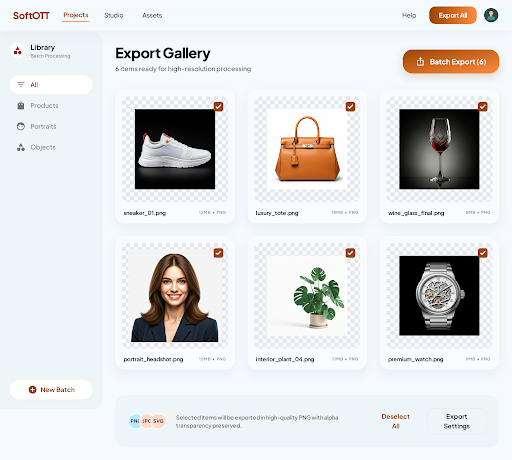
The use cases expand quickly once the friction is gone.
E-commerce listings. Amazon, Shopify, eBay, and Etsy all prefer or require white or transparent product backgrounds. If each cutout takes five minutes manually, a catalog of two hundred products is sixteen hours of work. A batch-capable AI tool turns that into an afternoon, consistently.
Professional headshots. A photo taken against a messy office wall becomes a polished profile picture the moment the background is swapped for a neutral gradient. The subject looks identical; the professional read is completely different.
Marketing composites. Designers placing people or products into mockups, banners, or packaging comps spend a large fraction of their time on masking. AI removal compresses that hour into seconds and leaves them to focus on layout and typography.
Event invitations and greeting cards. Every "holiday card with the family cut out against a snow scene" starts with a cutout. Doing it without AI is either slow or ugly — usually both.
Social posts and stickers. Instagram stickers, Discord emotes, and Slack custom reactions all require transparent backgrounds. A fast cutout turns any photo into asset material.
How to Get the Best Results Out of SoftOTT
The tool does most of the heavy lifting, but a few habits meaningfully improve output:
- Upload at the highest resolution you have. SoftOTT handles inputs up to 8K. Mask fidelity at the edges scales with input detail — downscaling first costs you quality you cannot recover.
- Avoid heavy compression on the source. Heavily compressed JPEGs have blocky artifacts that the model can mistake for part of the subject. Prefer the original capture over a re-saved screenshot when you have both.
- Check the translucent areas first. When the result comes back, zoom into any transparent object or soft edge before anything else. That is where the quality lives. If those look right, the rest will.
- Keep a clean master copy. Export the transparent PNG at full resolution once, then derive your resized variants from that master. Rerunning background removal on a scaled-down copy usually produces worse edges than resampling a clean cutout.
- Use the right format downstream. PNG preserves transparency; JPEG does not. If you save the final composite as JPEG, the transparent pixels will be flattened to whatever background you place the image on — which is usually what you want, but occasionally a surprise.
When to Still Mask by Hand
AI is not a universal answer. Two situations still reward manual work:
- Hero shots that define a brand. If a single image will be printed a meter wide on a billboard or sit as a permanent homepage banner, a retoucher's thirty minutes are still worth the insurance.
- Highly ambiguous subject boundaries. A person holding a bouquet the same color as their shirt, standing in front of a sign with similar tones, can confuse any model. A second pass with a quick manual refinement often finishes the job faster than re-prompting the AI to try again.
For the remaining 95% of real-world cutout tasks — the product photos, portrait swaps, design comps, and social assets — an AI-first workflow is faster, more consistent, and good enough that the human eye cannot tell the difference.
Give SoftOTT's background removal tool a photo from your own library and see where it lands on your worst-case edge. That one test tells you more than any marketing demo ever will.